
You update a plugin, refresh your site, and get a white screen. Or you log in one morning to find your homepage redirecting somewhere strange. Every WordPress site breaks eventually, and more often than not, the fix is to restore yesterday’s backup and carry on. The problem is that most people don’t set one up until the day they need it.
This guide covers backing up a small WordPress site properly, using a free plugin, and restoring it when something goes wrong. No developer skills needed.
What a WordPress backup actually contains
A WordPress site is two things: files and a database. The files are everything in your WordPress folder, including your theme, plugins and uploaded images. The database holds your posts, pages, settings, users and comments. A complete backup contains both. Save only the files and you lose your content. Save only the database and you lose your images and theme setup. Backup plugins handle both parts together, so you don’t have to think about it.
Check what your host already does
Before installing anything, find out whether your hosting already has you covered. On WPZee, the Business and Pro plans include automated daily backups. The Starter plan doesn’t, so a plugin is the way to go there.
If you’re hosted elsewhere, ask support a few direct questions. How often are backups taken? How long are they kept? Where are they stored? How do you restore one? Some hosts charge a fee for restores, and some only keep backups for a few days.
Even when your host takes backups, treat them as a safety net rather than your only plan. Host backups usually sit on the same servers as your website, and a restore often means opening a support ticket and waiting. Your own backup is one you control, stored somewhere else, ready the moment you need it.
How to back up your site with UpdraftPlus
UpdraftPlus is the most popular backup plugin for WordPress, active on more than four million sites. The free version covers everything a small site needs.
Step 1 – Install the plugin
In your WordPress dashboard, go to Plugins > Add New Plugin. Search for UpdraftPlus, then install and activate it. A new UpdraftPlus item appears in your sidebar.
Step 2 – Choose where your backups go
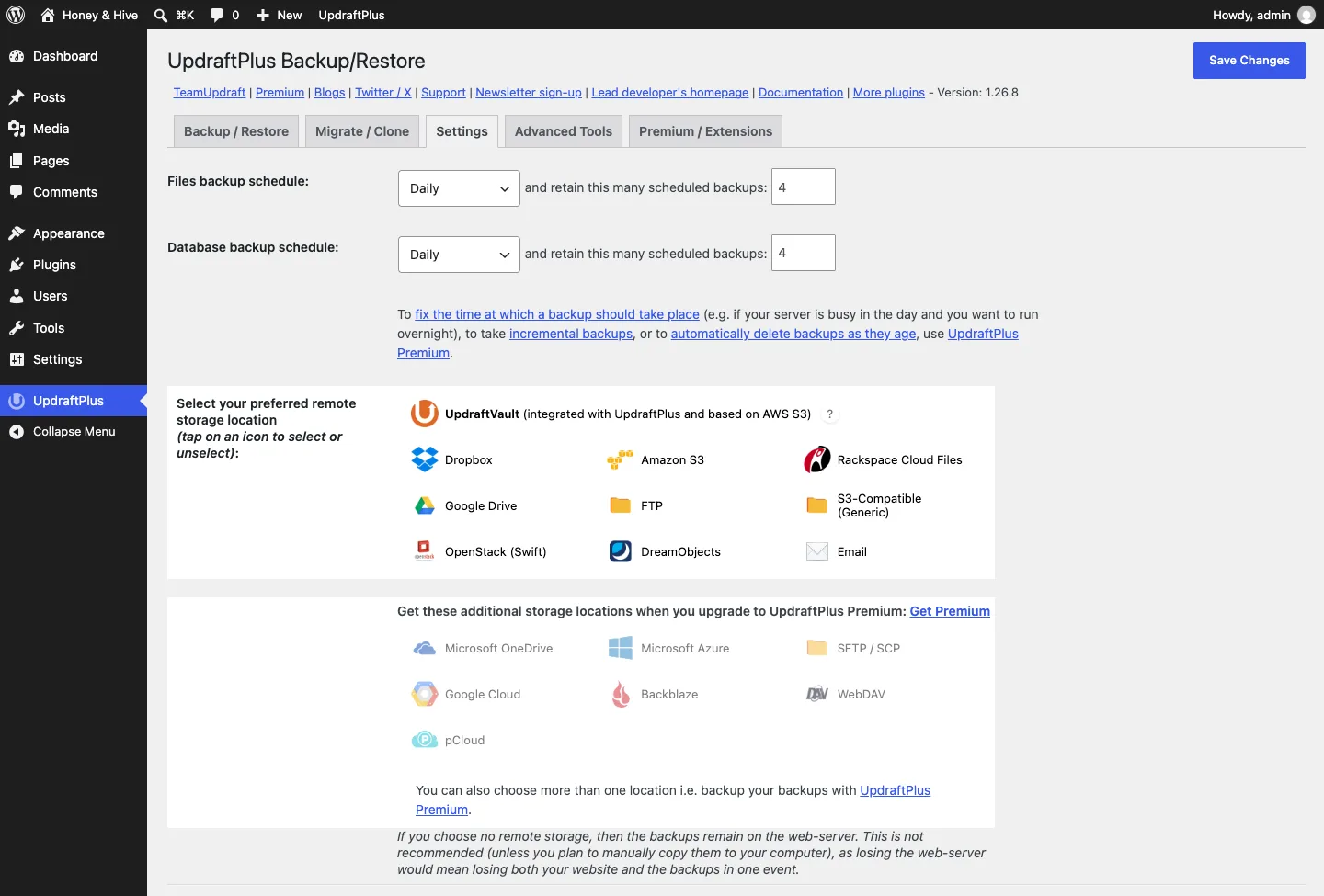
Go to UpdraftPlus > Settings. Under “Choose your remote storage”, pick a service you already use, like Google Drive or Dropbox, and follow the prompts to connect it.
This step matters more than it looks. By default, backups are saved on your own server, which is the worst place for them. If the server fails or your site gets hacked, the backups go with it. A copy in Google Drive or Dropbox lives somewhere your host can’t touch.
While you’re here, set a schedule for files and database, daily or weekly. A small blog is fine on weekly. If you publish often or run a store, go daily. Set the number of backup sets to keep to four or more, so you’re not left with only the most recent copy.
Step 3 – Run your first backup
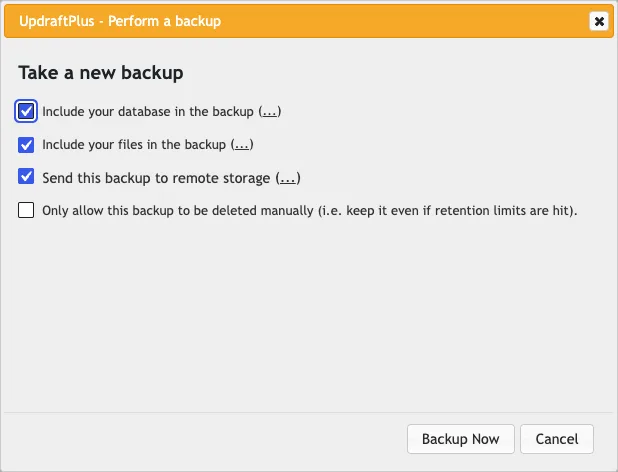
Go to UpdraftPlus > Backup/Restore and click Backup Now. Tick both database and files, then let it run. Don’t close the browser tab until it finishes. The first backup always takes the longest.
Step 4 – Check that it worked
An untested backup isn’t a backup, it’s a guess. Open the Existing backups tab and find your new backup set. It should show a green tick next to the database and files, and the remote storage column should confirm the copy was uploaded. If anything looks off, open the log and read the last few lines.
Once a year, go a step further and test a restore on a staging copy of your site. WPZee’s Business and Pro plans include a free staging site for exactly this. The day your live site breaks is a bad day to discover your backups were never working.
How to restore your site
Restoring sounds scarier than it is. Go to UpdraftPlus > Backup/Restore, find the backup set you want, and click Restore. UpdraftPlus lists exactly what it’s about to replace: database, plugins, themes, uploads. Confirm and wait for it to finish.

One thing to understand is that a restore rewinds your site to the moment the backup was taken. Anything published after that point is gone. That’s why the schedule matters. The bigger the gap between backups, the more work you lose.
If the problem is one broken plugin rather than a hack or corrupted files, try deactivating that plugin first. Restoring is the big hammer. It works, but it isn’t always the first move.
How often should you back up?
The honest answer is as often as you’d be comfortable redoing. A personal blog that gets one post a week survives on weekly backups. A WooCommerce store taking orders every day needs daily backups at minimum. Services like Jetpack VaultPress Backup save changes in real time, which suits stores where even a day of lost orders hurts. VaultPress starts at around A$8 per month for the first year and includes 10GB of storage.
UpdraftPlus’s free version handles daily schedules fine. If you want a backup to run automatically before every update, or incremental backups that only save what changed, Premium starts at US$70 per year for two sites.
Small habits that keep backups useful
Keep at least one copy off your server. This is the one people get wrong. A backup folder sitting in the same hosting account as your website isn’t a backup.
Back up before big changes. Switching themes, updating plugins and editing code are the moments things break. Run a manual backup first and you always have a way back.
Don’t rely on a single copy. An account can get locked, a file can corrupt, a service can fail. Two copies in two places turns a disaster into an inconvenience.
Final Words
Backups are boring until the day they save your business. The setup takes about fifteen minutes: install UpdraftPlus, connect Google Drive or Dropbox, set a schedule, and run one backup to confirm it works. After that, it looks after itself.
If you’d rather not think about it at all, WPZee’s Business and Pro plans include automated daily backups, plus a staging site for testing restores. You can find the plans here: WPZee WordPress Hosting.