Nobody thinks about website security until the day something goes wrong. Then you’re hunting for answers while your site is redirecting visitors somewhere unpleasant. Small sites get hit as often as big ones, because the attacks are automated and the bots don’t check how well known you are.
The good news is that a short list of settings, most of them set once, removes most of the risk. This is the checklist I’d give any small site owner who asks how to secure a WordPress website. No developer skills needed.
Why small sites get attacked
The commonly quoted figure is that around 13,000 WordPress sites get hacked every day. Nobody audits that number, but the scale is right. Attack bots scan millions of sites for a short list of known weaknesses, and anything running outdated software or a weak password gets caught. Nobody picked you personally.
The weak spot is rarely WordPress itself. Patchstack’s 2026 report recorded 11,334 new WordPress vulnerabilities in 2025, and about 91% of them were in plugins. WordPress core had two. That’s the shape of the problem. Your content is fine, and your plugin pile is the door left open.
Step 1 – Lock down your login
Most break-ins end at the same place you start your day, the login page. Three changes cover most of it.
Use strong, unique passwords
If you’ve used your site password anywhere else, change it today. Leaked password lists get tried against WordPress logins automatically, and reusing a password hands the keys over. Let a password manager generate something long and random. If you don’t use one yet, the “Suggest strong password” button on your profile page will make one for you.
While you’re on that screen, look at the username. “admin” is the first guess every bot tries. WordPress won’t rename an account after the fact, so if yours is admin, either create a fresh admin account with a better name or accept it and lean on the next two steps. Delete accounts you no longer use as well, and don’t hand out the administrator role when an editor will do.
Turn on two-factor authentication
Two-factor authentication means a stolen password isn’t enough on its own. After typing the password, you enter a six-digit code from an app on your phone. The Two-Factor plugin, maintained by the WordPress community, is free and takes about ten minutes to set up. Save the recovery codes it offers. If your phone dies or resets, they’re the only way back in.
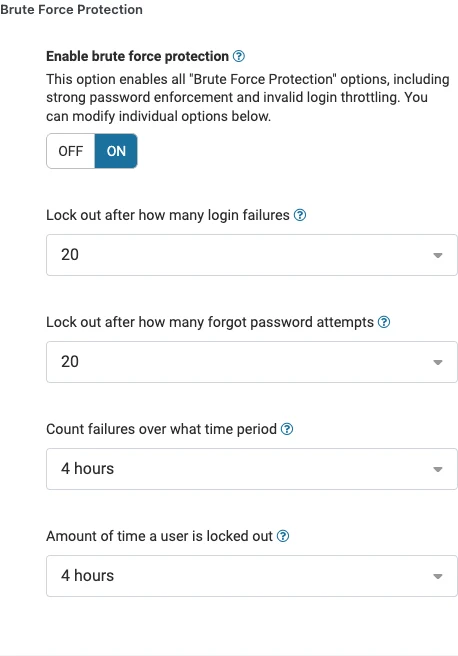
Limit login attempts
Out of the box, WordPress will let a bot try passwords as fast as its internet connection allows. Limiting attempts puts a stop to that: a few wrong tries, then the login is locked for a while. Wordfence, which I’ll come back to below, handles this with settings you can leave on their defaults.
Step 2 – Keep everything updated
If you only do one thing from this list, do this one. Outdated plugins are how most sites fall. Patchstack puts the median time from a vulnerability going public to mass attacks at about five hours, so staying behind is genuinely risky.
WordPress handles updates for itself. Minor releases and security fixes install on their own, and you rarely need to think about them. Plugins and themes are the part you have to switch on. Open Plugins in your dashboard, and for each one you plan to keep, click “Enable auto-updates”. WordPress then installs security fixes as they land.
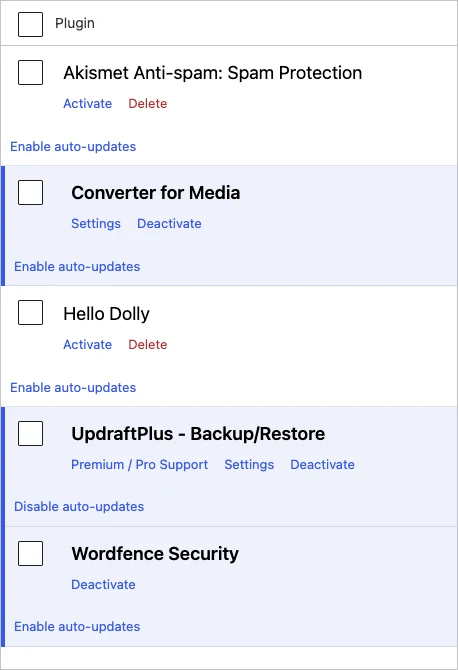
Three habits go with automatic updates:
- Delete plugins you’re not using. A deactivated plugin is still a file on your server, and attackers don’t care that it’s switched off.
- Delete old themes for the same reason. Keep the active one and a default, nothing more.
- Run major WordPress updates soon after they arrive. Take a backup first, then click update. If you haven’t set one up yet, I covered the process in How to Back Up Your WordPress Website.
Step 3 – Add a security plugin
A security plugin covers what a checklist can’t, because it watches your files and keeps an eye on the door. For small sites, the free version of Wordfence is the one I reach for first. Activate it and you get a firewall that blocks known attack patterns, a malware scanner, login security, and alerts when a plugin you’ve installed has a known vulnerability.
One thing to expect in 2026: Wordfence now asks for a license key during installation, even on the free plan. Register a Wordfence account, request the free license, paste it into the installer, and protection turns on. The free key’s threat data arrives about 30 days behind the paid feed, which is the trade for paying nothing. Premium costs $149 a year for one site and mainly buys those protections in real time. For a small site with sensible updates, free is a fine place to start.
Once it’s running, open Wordfence and run your first scan. It takes a couple of minutes and tells you whether anything on the site has been tampered with. From then on, scans happen on their own schedule and alerts land in your inbox.
One more check worth doing today: Sucuri’s SiteCheck. Paste in your domain and it reads the public side of your site for malware, blacklisting and other visible warning signs. It’s free, needs no account, and takes a minute.
Step 4 – Check that your site runs on HTTPS
HTTPS encrypts the traffic between your visitors and your site, and browsers now label plain HTTP pages “Not secure” in the address bar. That warning scares people off contact forms and checkout pages.
Since Let’s Encrypt made certificates free, every decent host includes one. WPZee plans include a free lifetime SSL certificate. Type your domain into a browser and look for the padlock. If it isn’t there, or you see a mixed content warning, send your host a message. It’s usually a five-minute fix on their end.
If your site does get hacked
Even careful sites slip up. These are the signs to watch for:
- Your site redirects to a strange page, or visitors tell you it does.
- Google sends a Search Console warning about a hacked site or a sudden drop in traffic.
- You spot users in the dashboard you didn’t create, or posts you didn’t write.
- Your host emails you about malware or an unexplained load spike on your account.
If any of that happens, don’t dig in blindly. Change your passwords, tell your host, and if you have a backup from before the trouble started, restore it. Restoring is usually faster and more reliable than cleaning an infection by hand.
Final Words
Security has a reputation for being endless, and it isn’t. For a small site it’s an afternoon of setup: strong passwords, two-factor on your account, auto-updates switched on, one security plugin, HTTPS checked, and a backup you trust. After that, a ten-minute look at the dashboard once a month is enough to stay ahead.
If you’d rather not think about it at all, WPZee’s managed WordPress hosting handles part of the list for you. Every plan includes a free lifetime SSL certificate, a free staging site, automated malware scanning and removal through Imunify360, and vulnerability patching from Patchstack. The Business and Pro plans add automated daily backups. You can find the plans here: WPZee WordPress Hosting.