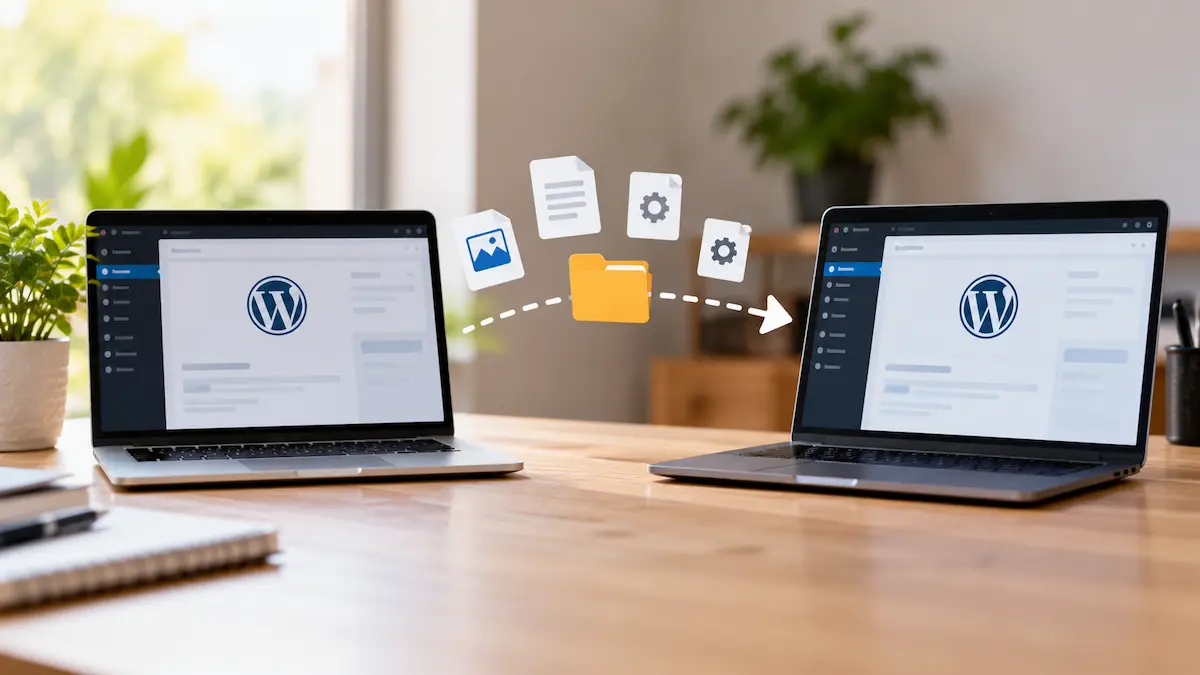
Moving your WordPress site to a new host sounds like the kind of job that ends with a broken website and a long night. It usually doesn’t. A WordPress site is two things, files on a server and a database holding everything you’ve written. A move copies both, then tells the internet to look at the new copy.
The second part, pointing your domain at the new host, is what people worry about, and it’s the smallest step in the job. Here’s the process in the order it happens, with the parts worth checking.
What actually moves
The files are everything in your WordPress folder, and the folder that matters is wp-content. Your themes, your plugins and every image you’ve uploaded live there. A fresh install brings its own copy of the core files, so wp-content is the part you can’t replace.
The database holds your posts, pages, menus, comments, users and the saved settings for every plugin. It sits outside the file system, usually in MySQL, which is why every move has two halves.
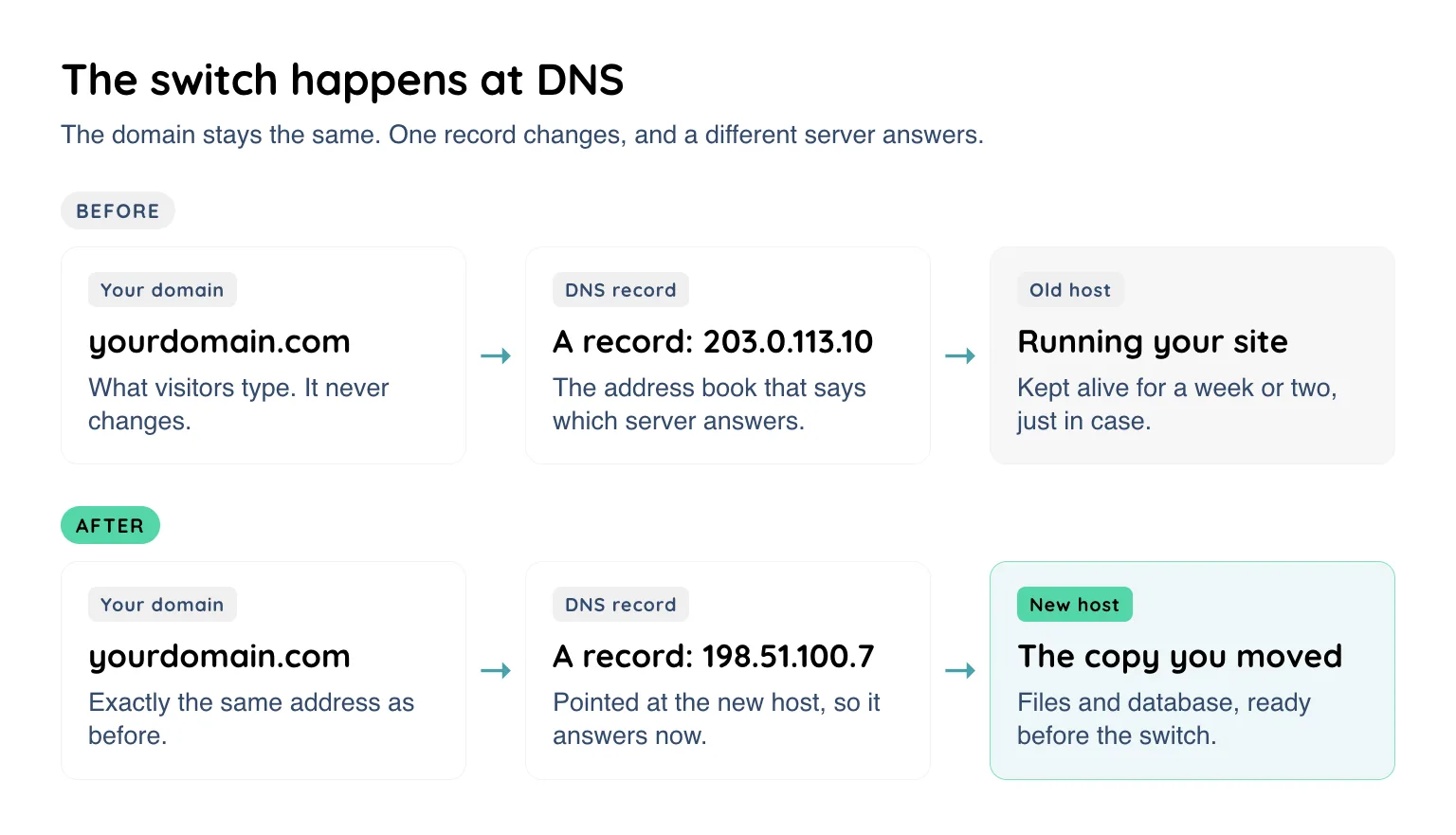
Your domain doesn’t move at all. It stays registered in your name. What changes is which server answers when someone types it in, and that’s the setting step 5 is about.
Before you start
- Back up your site, and keep that copy somewhere other than your web host. It’s your way back if the move goes wrong, and the process is in How to Back Up Your WordPress Website.
- Find out where your email lives. If your email address uses the same domain and sits with your current website host, the DNS step can take it down with the site. There’s a fix, and it’s below.
- Ask the new host whether the move is included. Plenty of hosts copy a site in for free when you sign up.
- Lower your DNS waiting time. Every record has a TTL, a number in seconds that tells the internet how long it may keep the old value. All-in-One WP Migration’s migration guide suggests dropping yours to 300 seconds a day or two before the switch, so the change lands quickly when you make it.
Step 1 – Ask the new host to move it
For a small site, this is the sane option, and there’s no prize for refusing it. You open a support ticket, hand over a login or a backup, and their team copies the site across. They can’t decide when your domain switches, so you’re still doing step 5 yourself.
Step 2 – Or move it with a migration plugin
If you’d rather do it yourself, a migration plugin is the least painful route. All-in-One WP Migration is the one I’d hand to a friend. It’s free, it packs a whole site into a single file, and it rewrites your addresses on the way in.
Three steps:
- On the site you’re leaving, install the plugin and choose Export, then File. You get a single
.wpressfile holding the database, the images, the themes and the plugins. - At the new host, install a fresh copy of WordPress. It doesn’t need configuring, just running. Install the same plugin there.
- Open the plugin’s Import screen and upload the file.
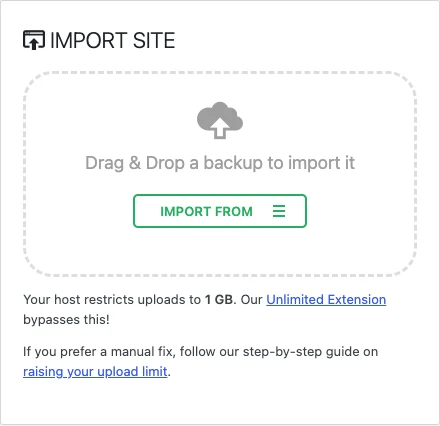
The plugin’s own page is straight about the catch: the export can be any size, but the import has to fit through the upload limit your host allows, and the Import screen tells you the number. If your backup is bigger than that, ask the host to raise it. The paid version works around the limit, but it’s rarely worth buying for one move.
UpdraftPlus does the same job if you already use it for backups. Its free version restores a backup into the new site, with the same search and replace built in.
Step 3 – Or move the files and database by hand
This is the route for anyone who wants to see exactly what lands on the new server, and for moves where a plugin import keeps failing. WordPress’s own documentation covers it end to end. The short version has three parts.
The files
Log in to your old host with their file manager, or an FTP program like FileZilla, and download the WordPress folder. Upload it into the same place at the new host. If they set up WordPress for you, upload wp-content and leave their core files alone.
The database
In phpMyAdmin on your old host, select your WordPress database and export it as a .sql file. At the new host, create a database and a user, then use the Import tab to load the file. After that, open wp-config.php and update the four database lines at the top: the name, the user, the password and the host.
The addresses inside it
Every post, page and image in the database has your address written into it. If the domain stays the same, there’s barely anything to fix. If it changes, run a search and replace, and don’t do it with a plain SQL query. Themes and plugins store settings as serialized data, which records how many characters long each address is, and a blind replace leaves those counts wrong and breaks the settings. Better Search Replace handles it properly, and it runs a dry run first so you can see what would change. WP-CLI’s wp search-replace does the same job if your host offers it.
Step 4 – Test the copy before anyone sees it
Most hosts give a new site a temporary address you can log in to before the domain moves. Click around. Check that images load, menus go where you expect, a contact form arrives in your inbox, and you can log in as yourself. None of it is visible to visitors yet.
If there’s no preview address, you can point your own computer at the new server by adding one line to its hosts file. That’s a private address book your machine checks first, so only you see the new copy while everyone else keeps seeing the old one.
Step 5 – Point the domain at the new host
The switch is one setting, made wherever your DNS is managed, which is usually your domain registrar or your DNS provider. There are two ways to do it, and you only need one.
- Change the A record. An A record holds a server’s address, and your new host will tell you which one to use. Change that line and everything else in your DNS, email included, stays exactly where it was. For a small site, this is the option to pick.
- Change the nameservers. Some hosts ask you to point your nameservers at them instead, which hands your whole address book to the new provider. That’s fine, but anything your old provider was handling has to be recreated at the new one, and email is what gets forgotten.
Email is what people lose in a move. If your address runs on the same domain and lives with your current website host, look at your MX records before you touch DNS. MX records say where email should be delivered, and they need to exist at whichever provider now runs your DNS. If your email is with Google, Microsoft or another dedicated email service, you can relax, because you’re only moving the website.
After the change, other people’s computers keep the old record until its TTL runs out. With the 300 second TTL you set, that’s five minutes. With the default at many providers, it can be up to a day, so wait longer than feels reasonable before deciding something is broken. Leave the old hosting running as well, because All-in-One WP Migration’s guide suggests keeping it for seven to fourteen days as a safety net.
Step 6 – The checks that matter afterwards
- Load the site on your phone with wifi off. That’s the honest test of whether the internet has found the new host.
- Open Settings, then Permalinks, and click Save Changes. It rebuilds the rules behind your page addresses, and it’s the first thing to try if pages start throwing 404 errors.
- Look for the padlock in the address bar. If it’s missing, ask the host to issue the SSL certificate for your domain.
- Send a message through your contact form and confirm it arrives. Email sending is the small thing that quietly breaks in a move.
Final Words
There are two jobs here and it helps to keep them apart. Copy the site, then point the domain at the copy. Do them hours apart, test the copy before anyone else sees it, and keep a backup that isn’t stored on either host. The step that feels risky, changing DNS, is one line at the registrar.
If you’d rather skip the file-by-file route, WPZee’s plans include a self-service migration tool, a free staging site for testing the copy, and a free lifetime SSL certificate. You can see the plans here: WPZee WordPress Hosting.